Copilot prompts for nonprofits · Grants managers
Copilot prompts for nonprofit grants managers
Grant work runs on deadlines, details, and documents you already have. These twenty prompts point Microsoft Copilot (formerly Microsoft 365 Copilot) at your RFPs, past proposals, budgets, and award letters, so you spend less time assembling and more time deciding what to pursue.
Written by Centered Networks · Microsoft facts checked on Microsoft Learn, October 13, 2026
Grounded in your work
Works from your work, not the open web.
With a Microsoft Copilot license, Copilot works from your organization's own material. Copilot Chat, included with Microsoft 365, works from the web and what you paste or upload, and in Outlook it can also see your inbox and calendar.
-
Your files With a license
Word documents, Excel workbooks, and decks stored in SharePoint and OneDrive.
-
Your email and chats With a license
Outlook threads and the Teams chats you're part of.
-
Your meetings With a license
Recaps of transcribed Teams meetings: what was decided and who agreed to do what.
-
Your permissions Always
It only sees what you can already open, with or without a license.
New to Copilot?
Start with these three.
Each one works today in Copilot Chat, which comes with eligible Microsoft 365 plans: upload or paste the document first, then ask. With a Microsoft Copilot license, run the same prompt inside Word or Excel on the file itself.
-
Reduce an RFP to one page
Try:
Summarize this request for proposals on one page: eligibility, deadline, award range, match requirement, required attachments, and how proposals are scored.
-
Cut to the word limit without losing substance
Try:
Cut this narrative from 2,400 words to the 1,500-word limit. Keep every required heading and every outcome number.
-
List every condition in the award
Try:
List every condition in this award agreement: reports and due dates, allowable and unallowable costs, match, and changes that need the funder's approval first.
Choose what to apply for
-
Word
Reduce an RFP to one page
Try:
Summarize this request for proposals on one page: eligibility, deadline, award range, match requirement, required attachments, and how proposals are scored.
-
Word
Read the guidelines against your program
Try:
Read this funder's guidelines next to our program description. Where do we clearly fit, where is it a stretch, and what would a reviewer question?
-
Excel
Track every prospect in one place
Try:
Set up a tracker from this list of prospective funders with the amount, due date, current stage, owner, and next step for each, sorted by due date.
-
Outlook
Ask a program officer about fit
Try:
Draft a short email to this program officer asking whether our workforce program fits their spring cycle, with two sentences on what we do and who we serve.
-
PowerPoint
Bring leadership a go or no-go
Try:
Make a three-slide go or no-go summary for our leadership meeting: what the grant funds, what it would take from staff, and my recommendation.
Write the proposal
-
Word
Draft to the funder's outline
Try:
Draft the project description following the section order in this RFP, using our program plan and logic model. Mark every place where I need to add a number.
-
Word
Write the evaluation plan
Try:
Write the evaluation plan section from our logic model: each outcome, how we measure it, who collects the data, and when we report.
-
Excel
Explain every budget line
Try:
Write the budget narrative for this workbook. For each line, explain what it pays for and how it connects to the project activities.
-
Word
Settle on one version of your history
Try:
Compare the organizational history paragraphs in these five past proposals. Write one current version and flag any facts that conflict between them.
-
Word
Cut to the word limit without losing substance
Try:
Cut this narrative from 2,400 words to the 1,500-word limit. Keep every required heading and every outcome number.
Compliance after the award
-
Word
List every condition in the award
Try:
List every condition in this award agreement: reports and due dates, allowable and unallowable costs, match, and changes that need the funder's approval first.
-
Excel
Check spending against the approved budget
Try:
Compare spending to date in this workbook with the approved grant budget. Show the percent spent by line and flag any line likely to overspend.
-
Word
Brief program and finance staff
Try:
Write a start-of-grant memo for program and finance staff from this award letter: what we promised, the key dates, what each team tracks, and who to ask.
-
Teams
Confirm who owes what for the report
Try:
From this grant check-in meeting, list what each person agreed to deliver for the six-month report and by when.
-
Word
Explain federal requirements in plain language
Try:
Explain the reporting and cost requirements in this federal award in plain language for our program team, and end with a checklist of what they need to do.
Reports and renewals
-
Word
Draft the year-one report
Try:
Draft the narrative for our year-one report from this outcomes summary and our original proposal. Compare what we promised with what we delivered and explain any gaps plainly.
-
Excel
See every report due this year
Try:
From these award letters, build one calendar of every report due in the next 12 months and highlight the weeks where two or more fall together.
-
Outlook
Answer a program officer's question
Try:
Draft a reply to this program officer's question about our delayed hire, using our last report and current spending. Be direct about the new timeline.
-
Word
Make the case for year two
Try:
Draft a renewal request that opens with what last year's grant achieved, then makes the case for year two with the updated budget.
-
Word
Learn from a declined proposal
Try:
This proposal was declined. Using the funder's feedback and our submission, list what to change before we apply to similar funders.
The one-page version
Twelve of the twenty, on one page you can pin up or pass along.
Microsoft Copilot for nonprofits
Copilot prompts for grants managers
Four kinds of work. Twelve prompts to try this week.
Works from your work, not the open web.
With a Microsoft Copilot license. Copilot Chat alone uses the web and what you paste or upload.
Your files
Documents and workbooks in SharePoint and OneDrive
Your email and chats
Outlook mail and Teams conversations
Your meetings
Teams recaps and who agreed to what
Your permissions
Only what you can already open
-
Word
Reduce an RFP to one page
Try: Summarize this request for proposals on one page: eligibility, deadline, award range, match requirement, required attachments, and how proposals are scored.
-
Word
Read the guidelines against your program
Try: Read this funder's guidelines next to our program description. Where do we clearly fit, where is it a stretch, and what would a reviewer question?
-
Excel
Track every prospect in one place
Try: Set up a tracker from this list of prospective funders with the amount, due date, current stage, owner, and next step for each, sorted by due date.
-
Word
Draft to the funder's outline
Try: Draft the project description following the section order in this RFP, using our program plan and logic model. Mark every place where I need to add a number.
-
Word
Write the evaluation plan
Try: Write the evaluation plan section from our logic model: each outcome, how we measure it, who collects the data, and when we report.
-
Excel
Explain every budget line
Try: Write the budget narrative for this workbook. For each line, explain what it pays for and how it connects to the project activities.
-
Word
List every condition in the award
Try: List every condition in this award agreement: reports and due dates, allowable and unallowable costs, match, and changes that need the funder's approval first.
-
Excel
Check spending against the approved budget
Try: Compare spending to date in this workbook with the approved grant budget. Show the percent spent by line and flag any line likely to overspend.
-
Word
Brief program and finance staff
Try: Write a start-of-grant memo for program and finance staff from this award letter: what we promised, the key dates, what each team tracks, and who to ask.
-
Word
Draft the year-one report
Try: Draft the narrative for our year-one report from this outcomes summary and our original proposal. Compare what we promised with what we delivered and explain any gaps plainly.
-
Excel
See every report due this year
Try: From these award letters, build one calendar of every report due in the next 12 months and highlight the weeks where two or more fall together.
-
Word
Make the case for year two
Try: Draft a renewal request that opens with what last year's grant achieved, then makes the case for year two with the updated budget.
Copilot drafts; a person checks every name, number, and fact. Keep individual case, health, and student records out of prompts, and follow your organization's AI and data policies.

Centered Networks
Microsoft Solutions Partner





All 100 prompts centerednetworks.com/copilot-for-nonprofits/
Download the one-page PDF Download the image (PNG)
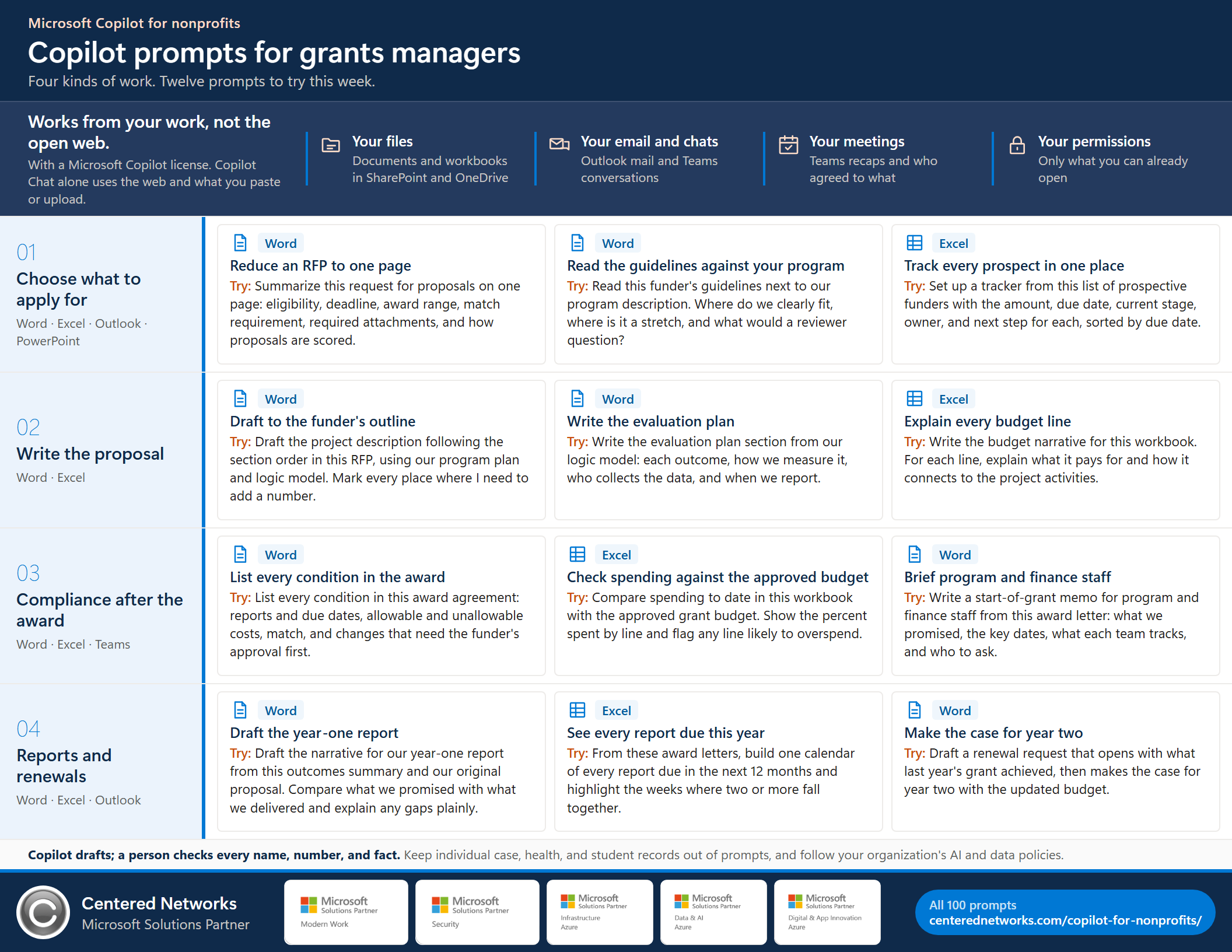
Copilot prompts for grants managers, one page. Letter size, landscape. Share it with your team.
A note on data. These prompts work from documents, totals, and program-level information. Follow your organization's AI policy, and keep case notes, health information, and individual records out of prompts unless that policy says otherwise.
Your agent for this role
Start with Grants Manager by CN in Copilot Chat, then ground it in your own work.
RFP summaries, fit checks, letters of inquiry, and proposals, drafted from what you paste in. It runs in the Copilot Chat that comes with Microsoft 365 and drafts only; it can't send, post, or submit anything. When you want it working from your own files, mail, and meetings, the next steps are Microsoft Copilot licenses with a governed pilot, a production agent built on your data, and Managed AgentOps to keep it accurate and in budget.
Beyond prompts
Want it to do the work, not just answer?
Prompts help one person at a time. We are building an AI operating system for nonprofits with founding partners: a governed team of role agents working on your organization's own Microsoft 365, so you get more done with the team you have.
The agents work from how your organization actually runs: funder history, deadlines, recurring work, and the reasons behind decisions. That knowledge stays with the organization when people leave. The executive director gets one approval inbox, every agent gets a scorecard, and nothing goes out until a person approves it.
Questions
Before you start.
Do I need a Microsoft Copilot license to use these prompts?
No, but the license changes what Copilot can see. Microsoft Copilot Chat is included at no extra cost for eligible Microsoft 365 work accounts; it works from the web and from what you paste or upload. A Microsoft Copilot license (formerly Microsoft 365 Copilot) lets Copilot work across the email, meetings, chats, and files you already have permission to open, and puts Copilot inside Word, Excel, PowerPoint, Outlook, and Teams. Prompts tagged Copilot app or Teams need the license to work from your own mail and meetings.
Will Copilot invent numbers for a proposal?
It can, which is why the prompts here ask it to mark where a number is needed and to compare drafts against your own documents. Treat every figure, date, and citation as unverified until someone checks it against the source.
Will Copilot show me files I'm not supposed to see?
No. Copilot respects your existing Microsoft 365 permissions and only reads content you are already allowed to open. That also means it can surface a file that was shared too widely, so check your sharing settings before a broad rollout.
Does Copilot summarize Teams meetings automatically?
Meeting recaps need transcription turned on, and the full intelligent recap needs a Microsoft Copilot or Teams Premium license. Without them, paste or upload your own notes and ask Copilot to turn them into decisions and action items.
Can we share these prompts?
Yes. Centered Networks wrote them for nonprofit teams. Copy them, change the details to fit your work, and share the page or the one-page PDF.
Prompts for other roles
Sources for the Microsoft facts on this page
Checked on Microsoft Learn on October 13, 2026. Microsoft changes names, features, and licensing often; confirm in your Microsoft 365 admin center before you plan a rollout.
- Overview of Microsoft Copilot Chat (grounding, permissions, Chat versus licensed Copilot)
- Manage Microsoft Copilot Chat (eligibility, the 2026 name change)
- License options for Microsoft Copilot (web-based and work-based chat)
- Using agents in Microsoft Copilot Chat (which agents cost extra)
- Intelligent recap for Teams calls and meetings (license and transcription)
- Get started with Copilot Cowork (prerequisites)
- Manage Copilot Cowork for your organization (usage-based billing and limits)
All prompts on this page are written by Centered Networks. Copy them, adapt them, and share them with your team.